v2.3
Select IDE
Visual Studio CodeIntelliJVisual Studio
Home
Blog
Knowledge Base
Download
ℹ️ Introduction
📜 Release History 🔥 What's New
💻 User Guide
🛠 Installation🆔 Log In
🧰 Features
▼
▶
Chat ConversationPredefined Actions
CodeVista Streak
Autocomplete
Autodoc
Autofix
Inline Chat
Web Search
Feedback System
Prototyper Agent
Prototyper Agent
💲 Usage Quotas❗️ Instructions for Internal FPT Users
❔ FAQ
Visit xVista Homepage

CodeVista Agent

CodeVista Agent is your AI-powered expert, purpose-built to help you handle complex tasks within your existing codebase, all from a single prompt. Seamlessly integrated into your IDE such as Visual Studio Code or IntelliJ, the Agent can automatically analyze your code, plan solutions, perform edits, run tests, and verify results. With CodeVista Agent, you can streamline your workflow and tackle multi-step challenges efficiently, without ever leaving your development environment.

Follow the instructions below to start your first Agent task:

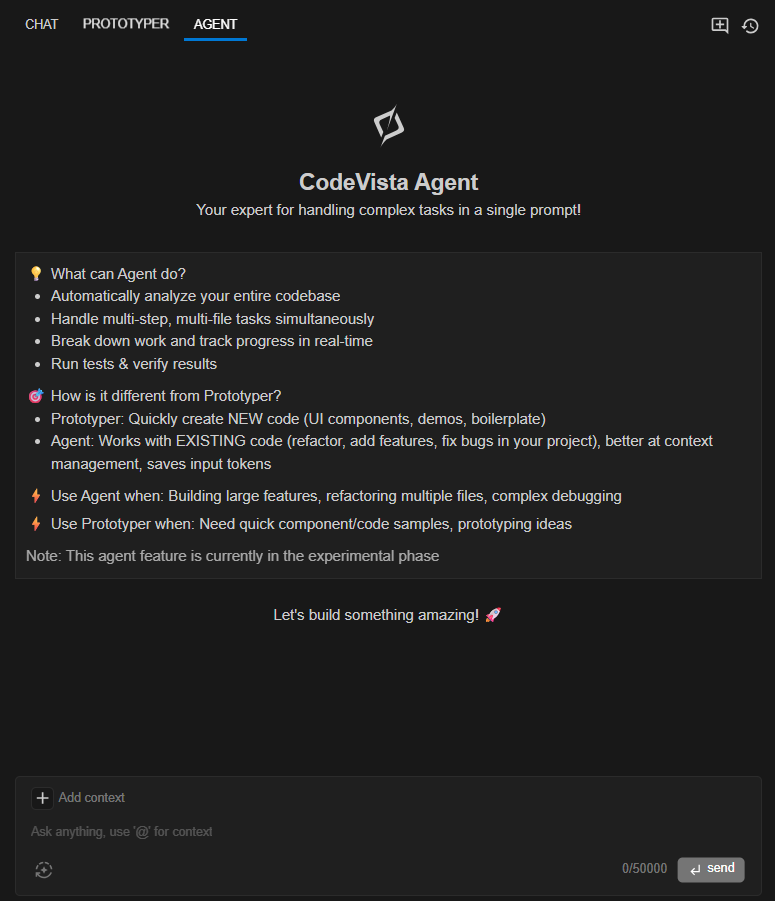
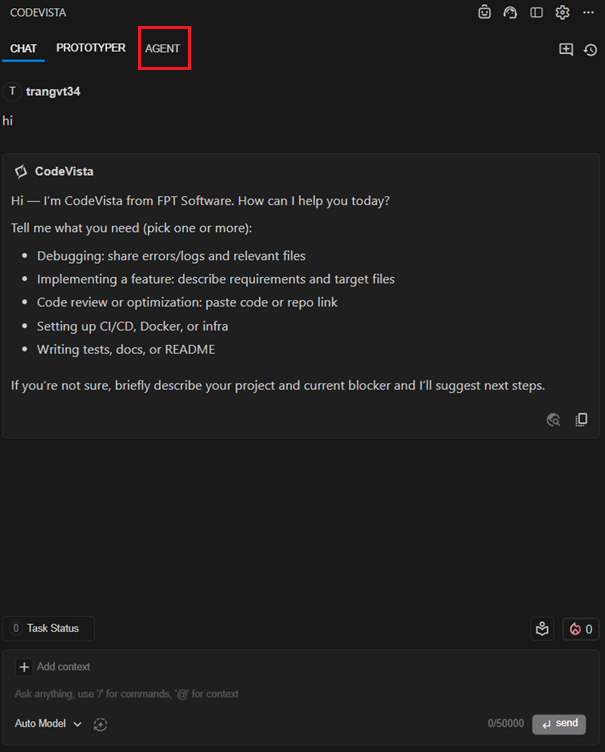
Step 1: Access CodeVista Agent

The Prototyper interface will appear as shown below:

Step 2: Prepare your code project in your IDE

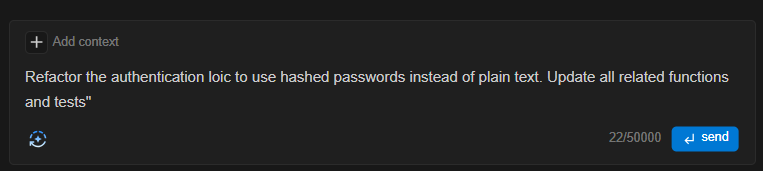
Step 3: Enter your prompt describing the task you want Agent to perform

For example:
"Refactor the authentication logic to use hashed passwords instead of plain text. Update all related functions and tests"
Note:
‍
User can click the rule icon to add new Workspace Rules.

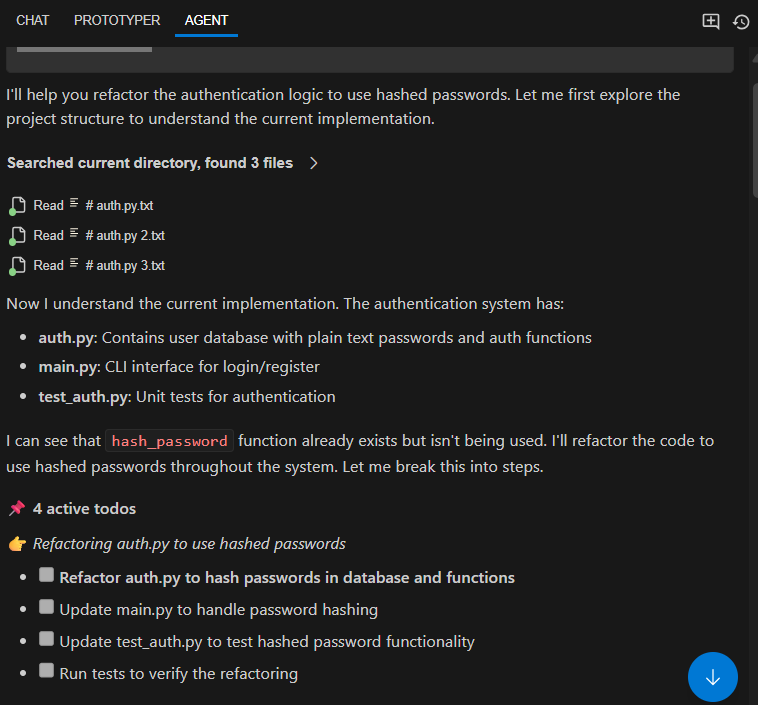
Step 4: Review the to-do list and the actions Agent plans to take.

After completing at least one task, a View All History button will appear in the Prototyper Chat Panel. Click this button to view a list of recently executed Prototyper tasks for easy reference and review.
Example:
  • Refactor auth.py to hash passwords in the database and functions
  • Update main.py to handle password hashing
  • Update test_auth.py to test hashed password functionality
  • Run tests to verify the refactoring

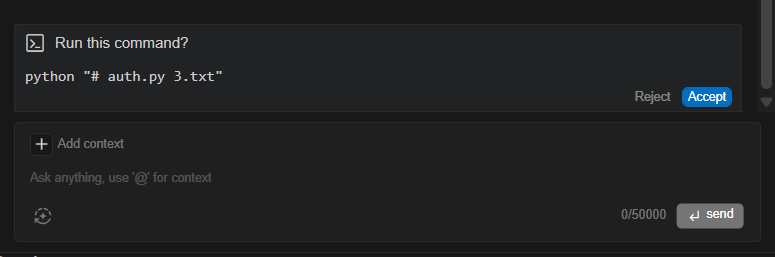
Step 5: When Agent suggests a command (e.g., to run code or tests), carefully review it.

  • Click Accept to execute
  • Click Reject to skip or modify
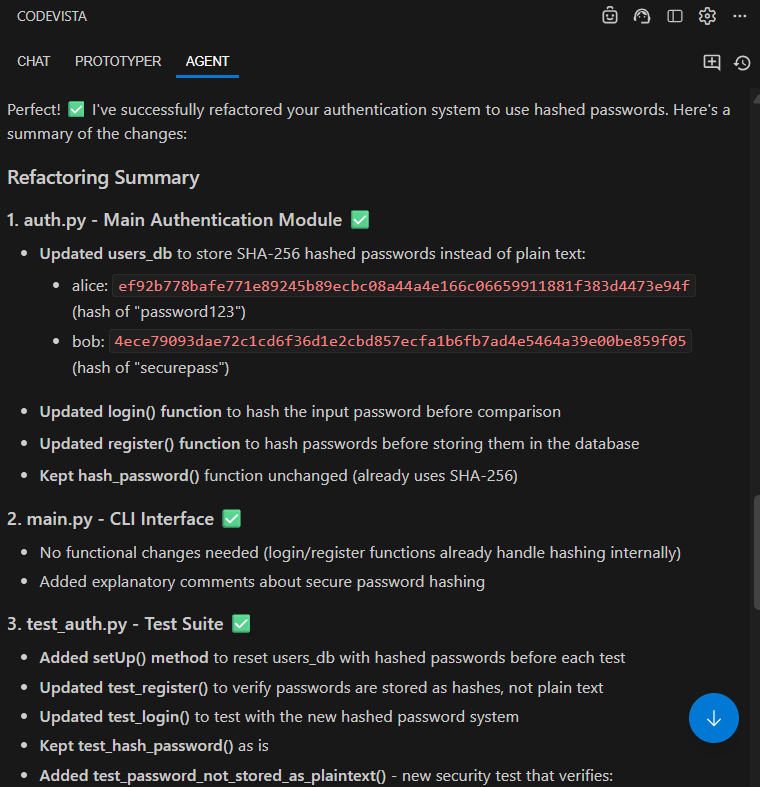
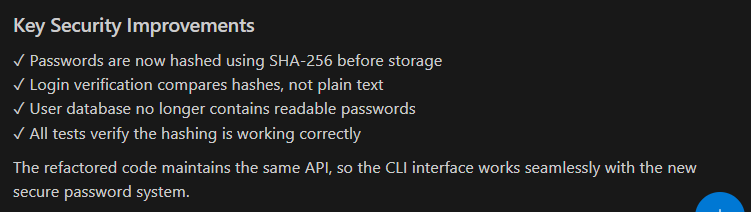
Agent will perform the changes, run tests, and show a summary of results and improvements.
You’ll see details of changes made to each file, new tests added, and security enhancements.

Step 6: Review the final summary. Your task is now complete!
You can check the updated code, run your own tests, or start a new Agent request.
Tips:

  • Always double-check commands before accepting, especially those that modify files.
  • Use clear prompts for best results.
  • Review the summary to understand all changes and improvements.
Previous
Feedback System
Next
Usage Quotas
Last Modified 1 month ago
Knowledge Base
On this page
Step 1: Access  CodeVista AgentStep 2: Prepare your code project in your IDEStep 3: Enter your prompt describing the task you want Agent to performStep 4: Review the to-do list and the actions Agent plans to take.Step 5: When Agent suggests a command (e.g., to run code or tests), carefully review it.Step 6: Review the final summary. Your task is now complete!